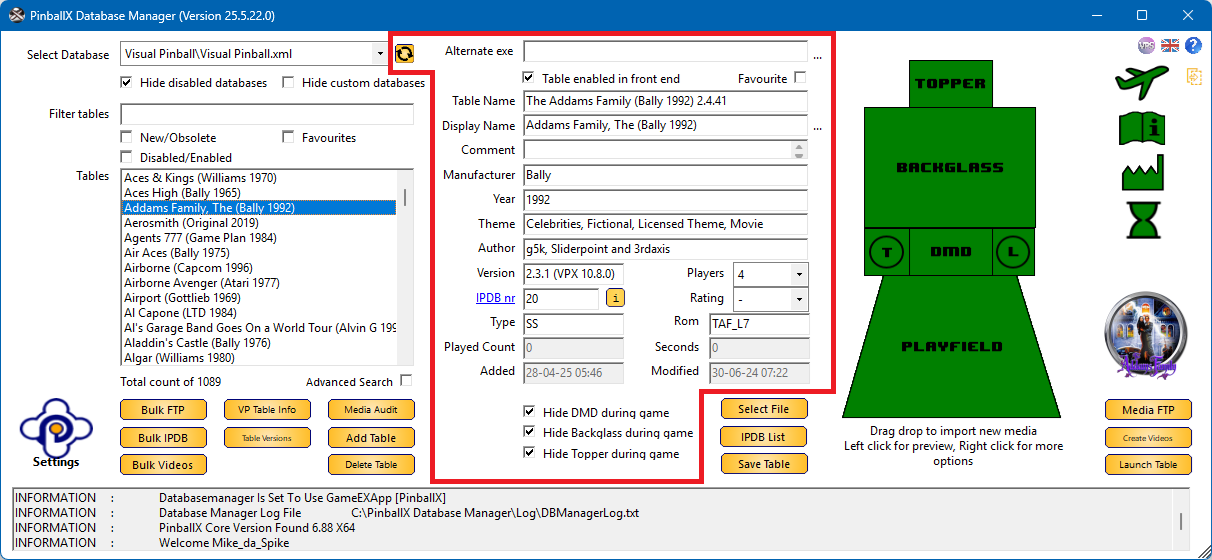
A table entry contains metadata, that is used by PinballX or a plugin developed by Scutters (or any other developer).
PinballX will use in the front end for example the Display Name, Manufacturer and Year to show the information on screen, or translate the text to an (animated) image.
Some fields can also be used when you create a filter for tables.
Here is a complete overview of all the fields that you can use within database manager
 |
Alternate exe Alternate exe is used for tables that needs to use another executable file than you set in your system. For example, Your system is setup for Visual Pinball 10.7 and the Executable file is ‘VisualPinball.exe’, but your table works better with the exe from Visual Pinball 10.6. Instead of adding a complete new system for Visual Pinball 10.6, you can point the ‘Alternate exe’ to the VP 10.6 executable that you also installed on your hard drive. Click on the 3 dots to browse to your executable file. |
 |
Table enabled in front end Check this box to enable the selected table in your front end Uncheck this box, to hide the table in the front end. |
 |
Favourite Check this box if the table should be appear in your favorite filter (within Lists) in the front end. Uncheck this box if it should not appear in your favorites |
 |
Table name Table name is the identifier for the frontend that it launch this name in your emulator For Future Pinball and Visual Pinball this is the filename without extension |
 |
Display Name Display name will be showed in your front end in the additional details part of the table.
The Display Name can contains Unicode characters as well. With Unicode characters you can give your tab Les in the front end an extra Icon Clicking on the 3 dots (…) behind the display name will bring up the following dialog 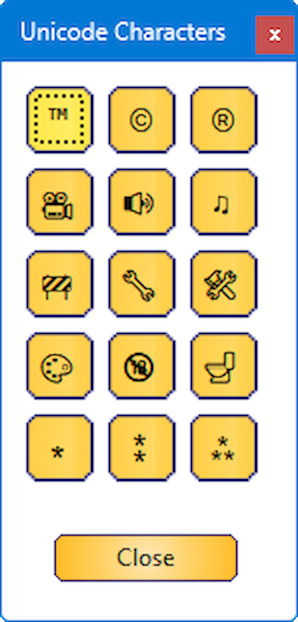 When clicking on these characters, it will add the Unicode character to your display name where your cursor position is Unicode characters can be used to create a custom filter as well |
 |
Comment Free field that supports multi lines. |
 |
Manufacturer Manufacturer will be used in the frontend to display the logo of the manufacturer. Logos can be added/modified/deleted via the company logo  |
 |
Year Year will be showed in your front end in the additional details part of the table. |
 |
Theme Theme is populated from the VPS-DB Json file (by Fraesh) that will be downloaded (if device is connected to internet) and merged to IPDB database The theme field can be used to create a custom filter as well |
 |
Author Author field is populated automatically (if creator of the table added the info in the table) from Visual Pinball and Future pinball tables during import of a new table, Modify of existing table or during change of XML file where you setup this setting to check automatically Settings: General (set Auto check VP and FP tables to yes) The author field can be used to create a custom filter as well |
 |
Version
For Visual Pinball tables, the field also includes the specific version of Visual Pinball extracted directly from the table. This is appended to the table version in parentheses. For example: 2.3.1 (VPX 10.8.0), where 2.3.1 is the table version, and VPX 10.8.0 indicates the Visual Pinball version. This feature is exclusive to Visual Pinball tables. |
 |
IPDB IPDB number is populated from the IPDB list that is added into Database Manager.  is a button that needs to be enabled in the settings of the program (see Settings: General) When enabled, the button will be functional when an IPDB number is in the IPDBnr field. Otherwise the button will be greyed out. |
 |
Type Type field is populated from the IPDB List that is added into Database Manager Is normally used to identify the type of table. But is also used, for example with Zaccaria tables, by external script as parameter. SS – Solid State EM – Electro-mechanical PM - Pure mechanical Will be filled when using IPDB list button or can be added/changed manually The Type field can be used to create a custom filter as well |
 |
Players Players field is populated from the IPDB List that is added into Database Manager |
 |
Rating Rating is used in the front end to rate and filter tables. |
 |
Rom Rom field is populated automatically (if creator programmed the table correctly) from Visual Pinball tables during import of a new table, Modify an existing table or during change of XML file where you setup this setting to check automatically Settings: General (set Auto check VP and FP tables to yes) The rom field will be used when enabling ‘Use PinMAME in frontend’ is set to Yes. |
 |
Played Count This is a read-only field and shows the table total count of played |
 |
Seconds This is a read-only field and shows the time in seconds that the table is played |
 |
Added This is a read-only field and shows the date when the table is added to the database file |
 |
Modified This is a read-only field and shows the date of the modified file date. |
 |
Hide DMD during game When checked, will not display the DMD video/image from PinballX frontend during the game. |
 |
Hide Backglass during game When checked, will not display the Backglass video/image from PinballX frontend during the game. |
 |
Hide Topper during game When checked, will not display the Topper video/image from PinballX frontend during the game. |
 |
Grid position Only available for Zen Pinball FX3 Select the correct grid position for the selected table in Desktop mode See https://www.gameex.info/forums/topic/19815-pinballx-242-pinballfx3/?do=findComment&comment=173751 |

|
Refresh Media Files When you delete a media file within Database Manager, and you put a file back again in the folder (so without importing or drag and drop), this button can reload the media file again |
 |
VPS Icon Link pinball spreadsheet, which give you information and download links for the selected table See Table Versions |