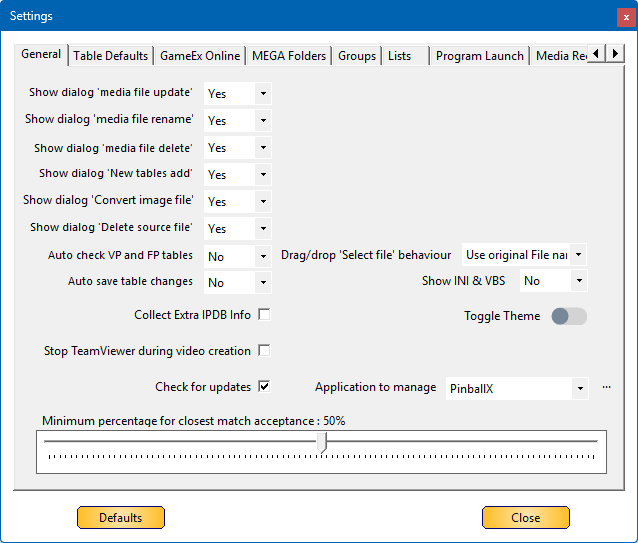
The General tab in the Settings menu is used to configure standard actions.
By default, you will receive a prompt for every action, including updates, file renaming, deletions, and more.
However, if you are confident in your choices and want to streamline workflow, you can disable these prompts and set a default action—either to automatically proceed or to prevent changes.
- Clicking the Defaults button resets all settings to their default values, as shown in the screenshot.
- Clicking the Close button (or the X in the upper-right corner) saves your changes and exits the settings dialog.
Below is a detailed breakdown of the settings for this section:
 |
¶ Show dialog ‘Media file update’With this option you can suppress the dialog to overwrite a media file by choosing, always overwrite media files or never overwrite media file. Set this option to No , if you don’t want to show an overwrite dialog  Update None – Will not overwrite media (default) Update All – Will always overwrite media
|
 |
¶ Show dialog ‘Media file rename’Database manager will save all your media on table name (actually filename of the table) Setting this option to Yes, will show a rename dialog when :
Setting this option to No, will give you an extra option behind this setting :  Replace None – Will not rename media * (default) Replace All – Will always rename media *Replace None is not recommended as it could not show your media in PinballX |
 |
¶ Show dialog ‘Media file DeleteWith this option you can suppress the dialog to delete media file(s) by choosing, always delete media files or never delete media files.  Delete None – Will not delete a media file (default) Delete All – Will always delete a media file |
 |
¶ Show dialog ‘New Tables add’With this option, you can suppress the dialog to add new tables automatically (* if applicable) by choosing, always add new tables or never add new tables...  Add All – Will always add new tables (default) Add None – Will never add new tables automatically * Adding table’s automatically is only applicable for Future Pinball, Visual Pinball and Zen Pinball FX3. |
 |
¶ Show dialog ‘Convert Image file’With this option, you can suppress the dialog to convert image files to a video file (with 1 frame) by choosing to keep the image or convert to Video (MP4). Setting this option to No, will give you an extra option behind this setting :  Keep Image – Will never convert an image to video (default) Convert to video – Will convert to image to video (and place media in correct directory) |
 |
¶ Show dialog ‘Delete Source File’With this option you can suppress the dialog to delete the source file, when drag and drop a table file to the ‘Select File’ button Setting this option to No, will give you an extra option behind this setting :  Copy File – Will copy the table file to the table directory without deleting the source file *(default) Move File – Will move the file to the table directory, which results that the source file is deleted *Copy File will only be affective when the source file is not in the table folder already. When drag and drop a file from the table directory to the ‘Select file’ button it will behave how you setup the ‘Drag/drop behaviour’ |
 |
¶ Auto check VP and FP tablesWith this option you automatically import Future Pinball and Visual Pinball meta data. This check will only be executed to tables with the same file name with a new time stamp No – Will not perform a check during XML selection (default) Yes – Will always import new meta data for VP and FP tables during XML change |
 |
¶ Drag/drop ‘Select file’ behaviourWith this option you can change the behaviour of the drag/drop on the ‘Select file’ button and Tables list. Use new file name – Will not rename your imported table file, but changes the table name in the interface, that could trigger the ‘media file rename’ dialog |
 |
¶ Auto save table changesAre you confident that all your changes you do, must do an automatically save of your table (and never get a question that you change something without saving the table), than you can put this to Yes. If you not sure, leave this to No No – Will always prompt you when you change a value to a table that is not saved (default) Yes – Will save all your changes to a table without asking |
 |
¶ Show INI & VBSOnly applicable for Visual Pinball systems Toggle if you want to see the POV and VBS options within the main form of Database manager 


With INI, POV and VBS icon, you can edit your INI (INItialization file) POV (point of view – legacy VPX) and/or VBS (Visual Basic Script) outside Visual Pinball and you can maintain your own copy of these files without changing the original visual pinball table No – Will not show INI and VBS icon in database manager Yes – Will show INI and VBS icon in database manager NOTE : Starting from VPX 10.8, POV files are replaced by INI files. The structure of the files are totally different. |
 |
¶ Collect Extra IPDB InfoThe internal IPDB database contains extra information that can be showed from the main form and data will be saved to the system database XML file. Uncheck – Will not collect/show/Save any extra IPDB information
Checked – Will collect extra IPDB information and save to the system XML file. An extra button will appear next to the IPDB nr on main form  |
 |
¶ Stop TeamViewer during video creationIf you use TeamViewer to manage your pinball cabinet remotely, it could happen that the team viewer application will be on top of your recorded videos. Uncheck – Team Viewer will be running when videos are created (default) Checked – TeamViewer will be stopped during video creation * *To stop team viewer from running, you need no UAC (user account prompt) for the user to popup, so a check will be performed if UAC is enabled or not. IF UAC is enabled, video creation will occur, but team viewer will not be stopped |
 |
¶ Check for UpdatesIf you want to be up to date with database manager, make sure you have this checkbox enabled. During launch of the program, it will perform a check if a new version of the program will be available Uncheck – No check for new version will be done during launch of the program. Checked – Check for new version of Database manager will be done during launch of the program *
*The check if a new version is available, requires internet connecting. Turn off this setting, if your machine isn’t internet connected |
 |
¶ Toggle ThemeIf you prefer dark theme, click on the button to switch to the dark layout. On first launch, the button will be set to the operating system behaviour |
 |
¶ Application to manageThis option is added, when there are multiple version of supported GameEx Applications (PinballX, Touch-Play) added to the system. During first launch of the application, it will automatically search for the installed and supported GameEx application(s), starting with PinballX and followed by Touch-Play If you have multiple versions installed, you can change it here PinballX – PinballX (default) Touch Play- Touch Play version (mostly if you use slot machines)
You can also add a ‘custom’ version of PinballX and/or Touch-Play. Click the 3 dots behind the pull down menu, to create/delete or rename a custom application. See Managing Custom applications
Note: changing this setting requires a restart of the application (you will be notified and restart will happen automatically) Note2: Custom applications can only be used when a valid PinballX or Touch-Play application is installed on your system. Database Manager will not work if no valid supported GameEx application is installed |
 |
¶ Minimum percentage for closest match acceptanceThis is a tricky option. IPDB matching: as a matching needs to be done on table name, a fuzzy search (see https://en.wikipedia.org/wiki/Approximate_string_matching) on table name needs to be done on the IPDB database. Moving the slider to a higher number, will automatically gives a match on better matching, but could give less results. Moving the slider to a lower number, will give more hits, but could give a false match. For media matching on FTP and MEGA, the table name and display name is used. If you give a correct display name to your tables, a better matching will occur. Default is 50%, but check this settings and you’re your own value (100% means it needs to match 1:1 and 1% means that all is matching) |