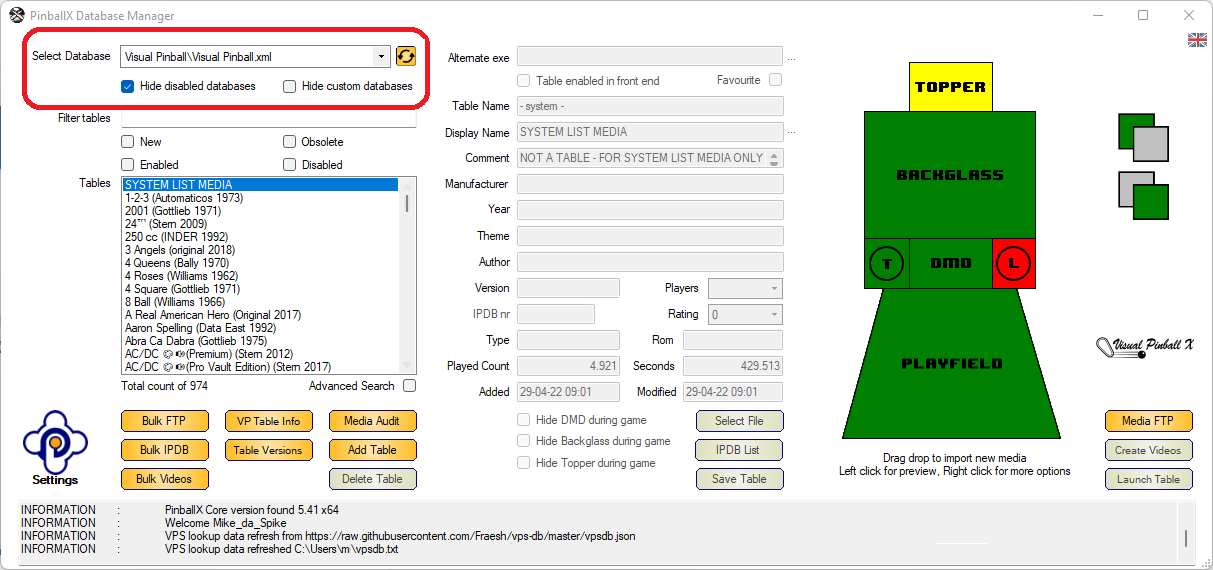
To manage all your tables, you must select a Database file.
By default, Database Manager will remember and reopen the last used database, ensuring a seamless workflow.
This is particularly useful for systems like FX3, Pinball Arcade, Zaccaria, etc., which don’t change as frequently as Virtual Pinball or Future Pinball setups.
 |
Select Database Click on the drop-down menu to view all available systems. Select the system/database/custom database you want to manage. The naming convention follows this format: SystemName\DatabaseFile. In this example the system name is The database file is also called Visual Pinball and the database file is also called The database file is also called Visual Pinball If the system name and database file match, it is a main database used within PinballX. If the database file differs from the system name, it is a custom database. |
 |
Hide Disabled Databases Some PinballX systems might be set to Disabled (Enabled = No). To filter these out, check the ‘Hide disabled databases’ box. To display all database files, uncheck this option. |
|
|
Hide Custom Databases Custom databases are subsets of main databases. See Settings: Lists to create them. A custom database can be a subset of a complete system. To filter them out, check the ‘Hide custom databases’ box. Unchecking this option will display all available custom databases |
 |
Refresh Media Files When you modify media files outside Database Manager (either deleting or adding them manually) without using the import or drag-and-drop features, use the Refresh Media Files button to reload them into the system. |