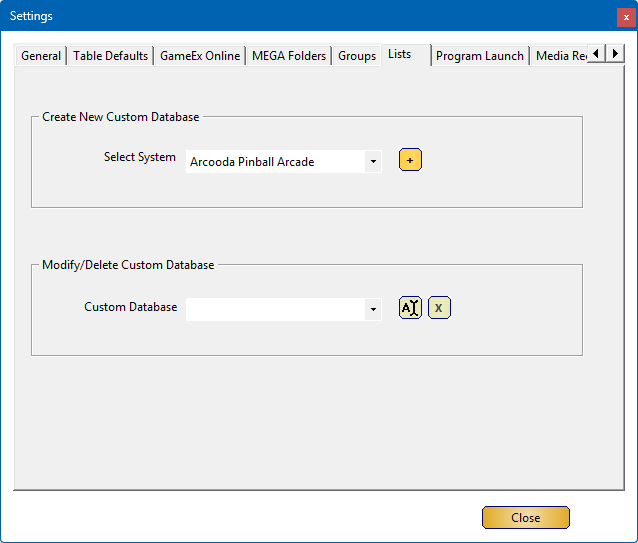
Within the Lists tab, you can create a custom database for a specific system.
The term Lists is used to align with PinballX terminology, but it essentially functions as a Custom Database
Historically, Lists (or custom databases) were used before Filters became available in PinballX.
A custom database will appear in the PinballX front end under the Lists menu entry and can be combined with a group for better organization.
For example, I use a custom database to display all my recently added tables from any system, making it easier to navigate without scrolling through my entire collection of 1,000+ tables.
While Filters (see the filter section) have made custom databases obsolete, PinballX still supports them.
As a result, this feature is included in our tool.
Using Custom Databases in Database Manager
- When you add a custom database, it will immediately appear in Database Manager, allowing you to add tables and media to it.
- A custom database follows the same rules as its parent database file.
- If the database is part of a Visual Pinball system, it will support all functions that Visual Pinball provides.
Below is a detailed breakdown of the settings for this section:
  |
¶ Create new Custom databaseIn the ‘Select System’ pull down list, you will see all your systems. 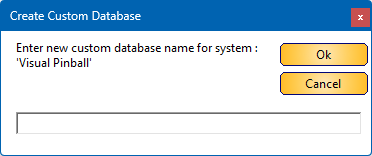
|
 |
¶ Modify/Delete Custom DatabaseIf a custom database is created, it will show the list of custom databases in the drop down list Custom Database |
 |
Rename custom database 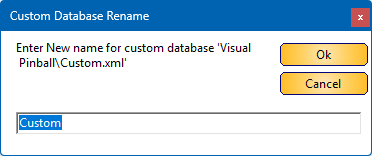 |
 |
¶ Delete custom databaseClicking on the ‘delete custom database’ button , will bring up a confirmation dialog 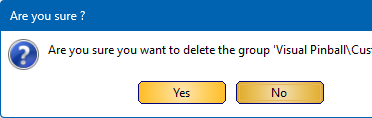 Note: A delete will not be done, but the file will be renamed to *.backup. |
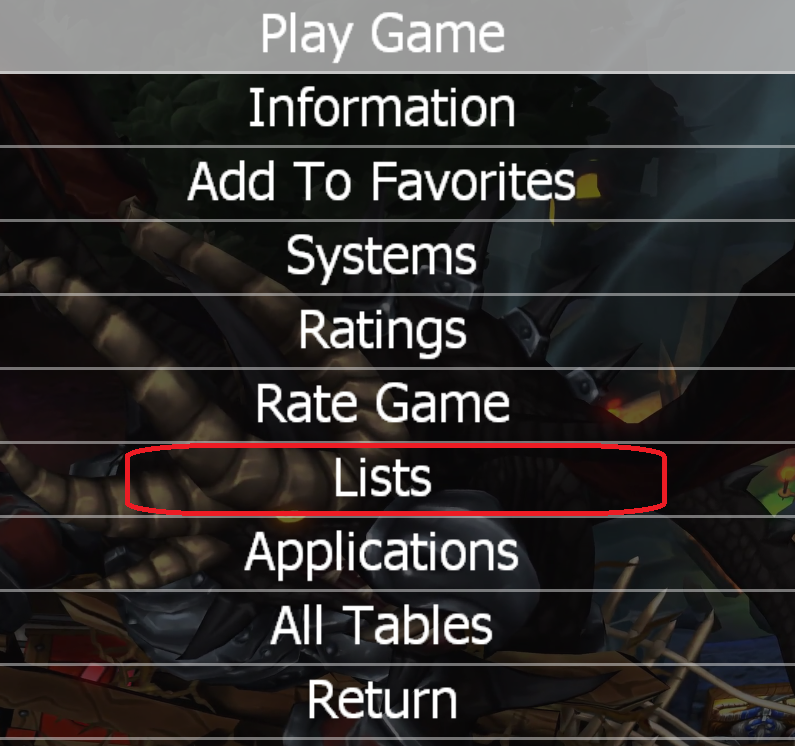 |
Within the PinballX front end, you can bring up the menu entry, scroll to Lists and hit the select button |
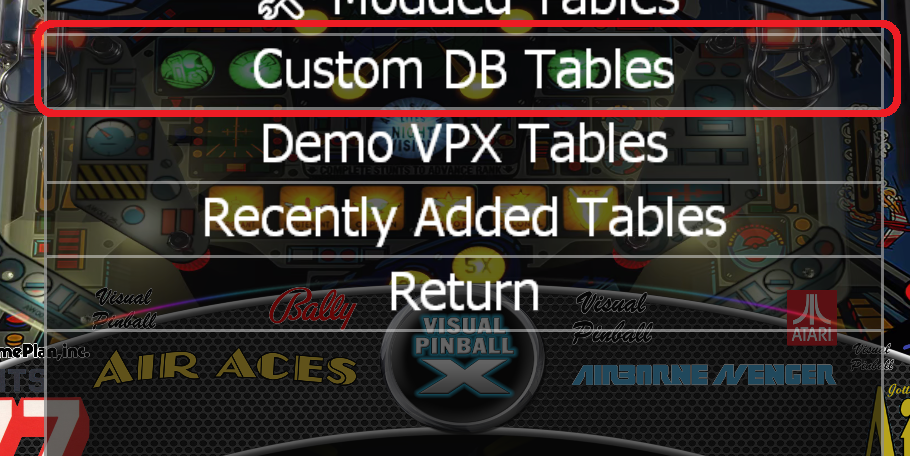 |
In the lists menu, you can now choose your custom database file (‘Custom DB’ in my example) and click on the select button, it will show all the tables I have defined in this custom DB list |