Custom filters allow you to define your own search criteria and make them available directly in the PinballX front end. This way you can quickly access specific groups of tables, such as themed collections or special ROM versions, without having to repeat complex searches every time.
 |
When checking the ‘Advanced search’ checkbox, the Advanced Search dialog will appear |
 |
¶ Select FilterWhen you check the Advanced Search checkbox, the Advanced Search dialog will appear. By default, the Select Filter dropdown is empty, meaning you can freely filter your database entries as you wish. From the dropdown you can either choose an existing filter to modify, or start with a new empty filter. |
 |
¶ Add FilterClick the Add new filter button to create a new filter. This filter can be used in the front end, or—if you already applied criteria in Advanced Search—it will adopt those settings. Note: Only the following fields can be used to create a filter:
|
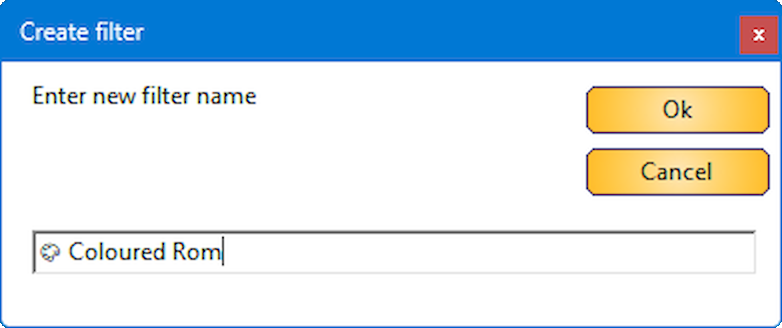 |
A dialog will appear asking you to name the filter. For example, if you want to mark tables with colored ROMs, you could add a Unicode symbol in the Display Name and call the filter '🎨Coloured Roms' Click OK to confirm. |
 |
¶ Use Filter for All SystemsBy default, the checkbox Use Filter for all Systems is unchecked. This means the filter applies only to the currently selected system in Database Manager. If you check this box, the filter will also appear in the PinballX front end across all systems. In Database Manager itself, the filter remains visible only for the selected database. |
 |
¶ Define the Filter CriteriaNow that the filter has been created, you need to specify which tables it should include. In this example we want to filter all tables with colored ROMs. See also: Using Advanced Search for complex queries with AND, OR, and NOT operators. |
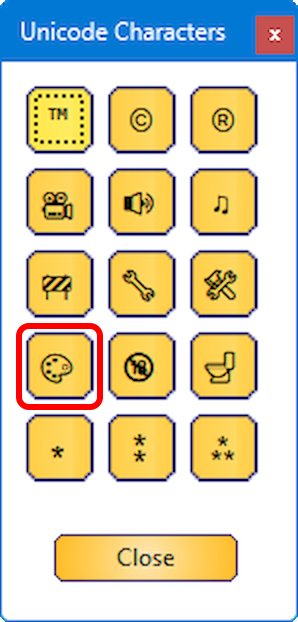 |
From the Unicode dialog, choose the coloured DMD icon. This symbol will be used as the marker for tables with coloured ROMs. |
 |
The Unicode icon now appears in the Display Name field, and the checkbox next to it is automatically checked. A checked box means that this field is included in the search. This mechanism also allows you to filter on empty fields: simply check the box without entering a value. Multiple fields can be combined to create more complex filters. |
 |
¶ Preview the ResultsClick the Search button to preview the filter. The results will show all tables that match the criteria you defined in the Display Name field. |
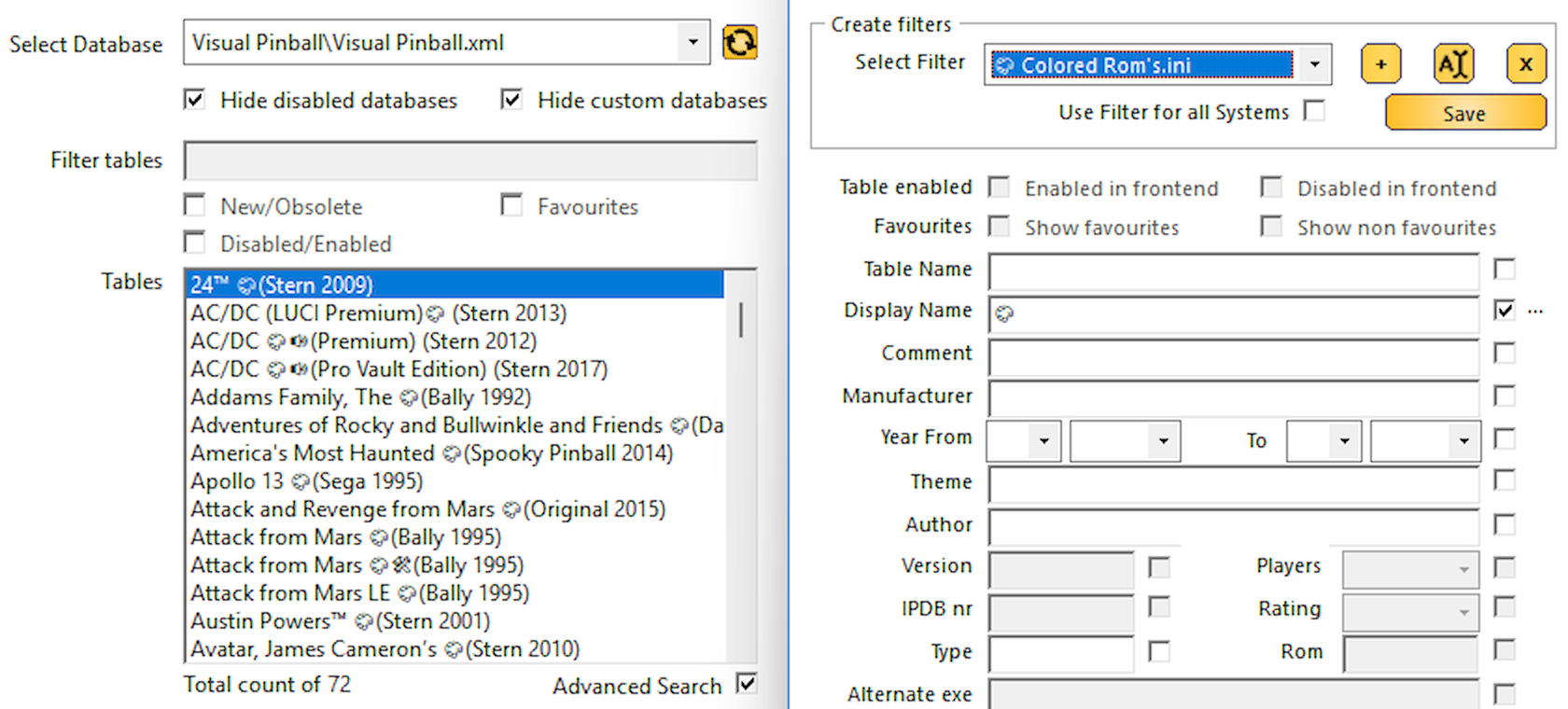 |
¶ Review the OutputThe filtered list now displays only the tables with the coloured ROM marker. If the results are correct, you can proceed to save the filter so it becomes available in the PinballX front end. |
 |
¶ Save the FilterIf the filter is set up correctly, click the Save button in the Create Filters section. |
 |
¶ Filter in PinballXAfter saving, launch PinballX. |
 |
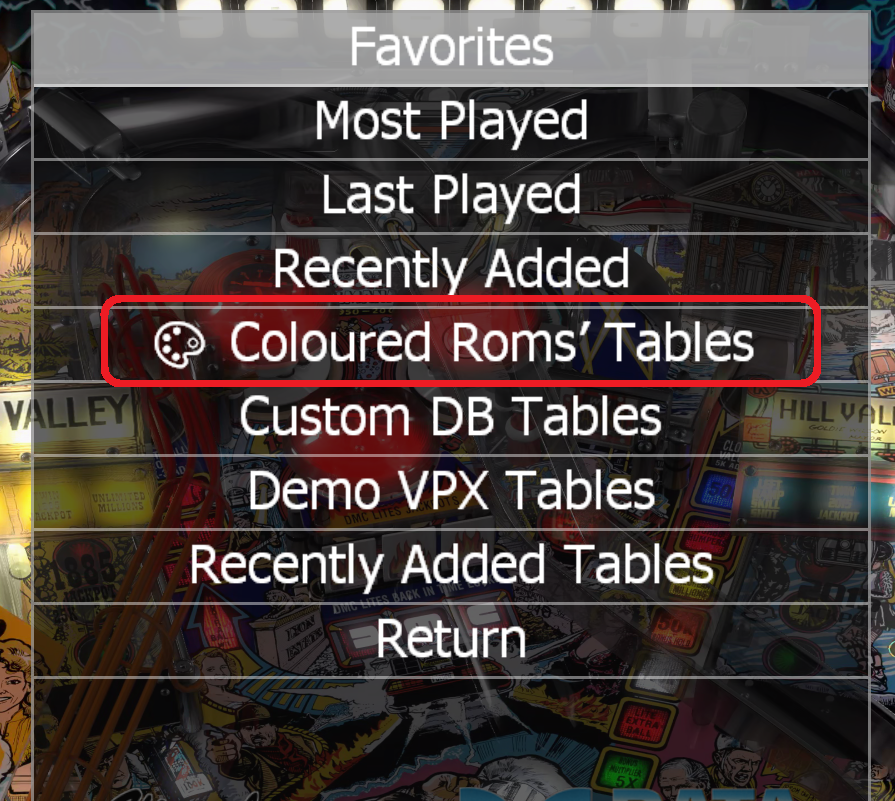
When you select this filter in PinballX, it will display all tables that match the criteria you defined. |