Emulators like Visual Pinball (VP) and Future Pinball (FP) regularly release updated versions of tables. When integrating these into your setup, there are generally two approaches:
- Replace the old table using a new filename
This method keeps both versions separate and allows for manual selection. - Overwrite the old table using the same filename
This replaces the existing file directly, streamlining updates but requiring caution.
If you choose to overwrite an existing table file by copying a new version with the same filename into your table directory, ensure that the setting ‘Auto Check VP and FP Table’ is enabled.
When this option is set to ‘Yes’, the system will automatically check for newer file dates when using a database file created for VP or FP. If a newer version is detected, it will update the database with the latest Author, Version, and ROM information.
 |
Select File Via de ‘Select File’, you can set the table name for your database again. |
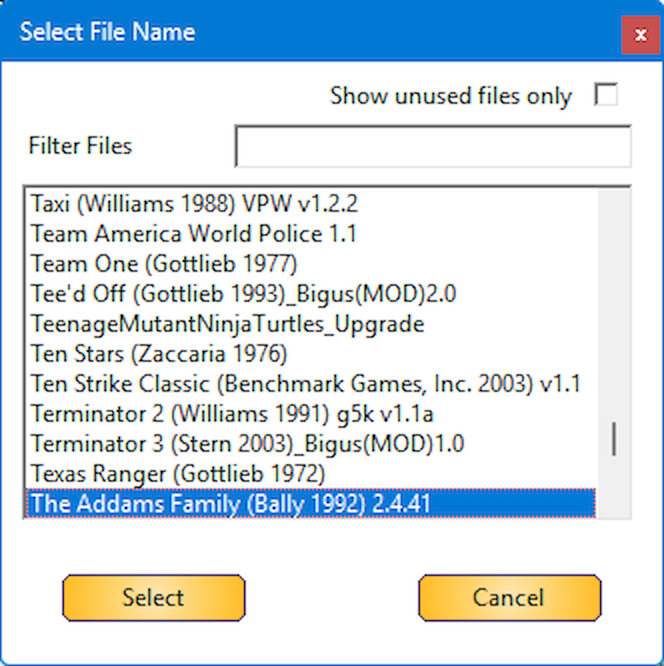 |
All files in the table path will be scanned and will be checked against your database file. If one or more files are unused, the ‘Show unused files only’ check box will be checked automatically. If you want to see the complete list, uncheck the ‘Show unused files only’ to show all your matching emulator files. When complete list is showed, the Table Name will be searched in the file list and will be highlighted. This is for people that will use the same name, and want to see if VP and FP info is populated correctly.
If you have a different file name, make sure you delete manually your old table file from the directory, as this will show up as ‘Unused file’ |
 |
Hit ‘Select’ button to select the new/updated table file |
 |
An IPDB match will be done as well, but will not overwrite your display name. Just updating the meta data |
 |
Click ‘Save Table’ to update your database file |