While there are several ways to add a table depending on your workflow or project complexity, this section focuses on the most straightforward method: creating a new table manually via the interface.
This approach is ideal for beginners or for quickly setting up a basic schema. Follow the steps below to get started.
 |
Add Table clicking on the ‘Add Table’ button will start the process of adding a new table. |
 |
Within the ‘Tables’ list, a new entry called ‘New entry’ will appear |
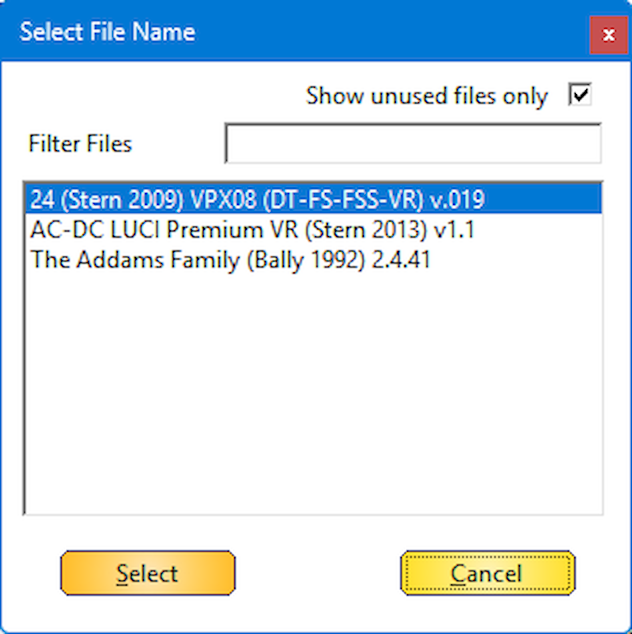 |
Automatically the ‘Select File’ dialog will open (only applicable for systems that has a table path and files). All files in the table path will be scanned and will be checked against your database file. If one or more files are unused, the ‘Show unused files only’ check box will be checked automatically. This is because, you properly want to use one of those files. If you want to see the complete list, uncheck the ‘ Show unused files only ’ to show all your matching emulator files |
 |
Filter Files Filter files is used to easily find and filter your File by using 1 or more word/characters that you type. This will limit your complete list to the input you gave. Clearing this field will show all (depend on the behavior of the ‘Show unused files only’ checkbox as well) |
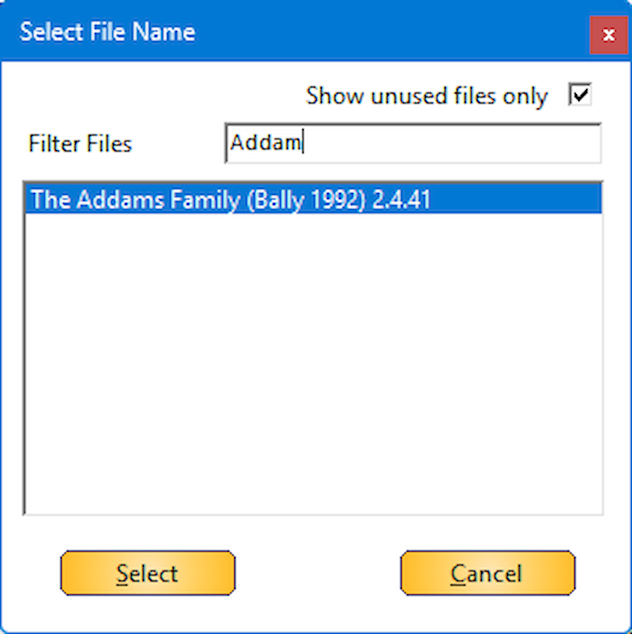 |
When the correct file is filtered/selected, click ‘Select’ to proceed with the next step |
 |
Based on the table name, an IPDB match will be performed automatically. The result if an IPDB entry is found and matched is showed in the action log |
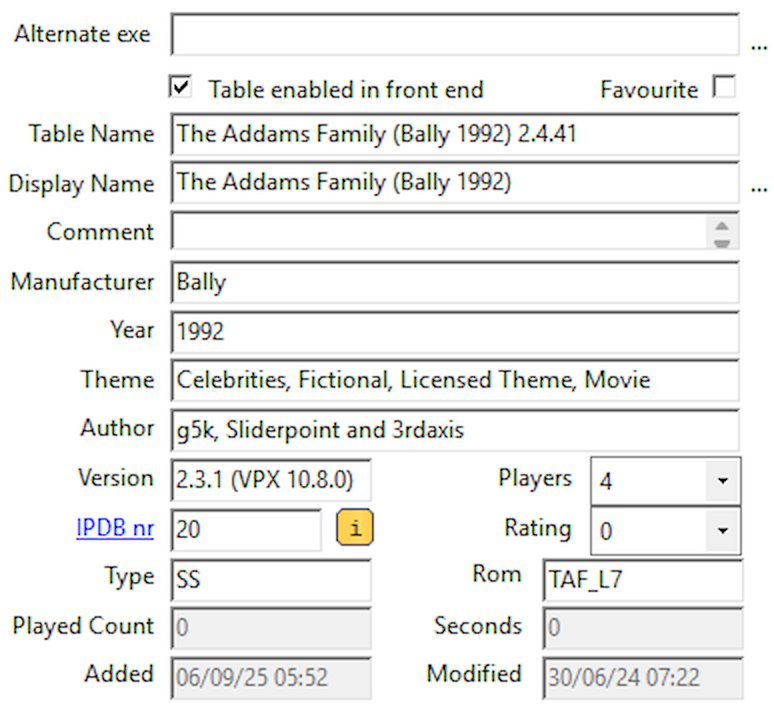 |
Based on IPDB match, the Display Name, Manufacturer, Year, Theme, IPDBnr, Type and Players data will be filled in automatically Visual Pinball and Future Pinball tables, will also get automatically the Author, Version and Rom (this depends if the author filled in all correctly in his table) |
 |
Save Table The Table is still showed as ‘New Entry’ in the tables list. Clicking on the ‘Save Table’ button, will add all the data now to your database file.
|
|
|
The table will be showed with the display name in the list |
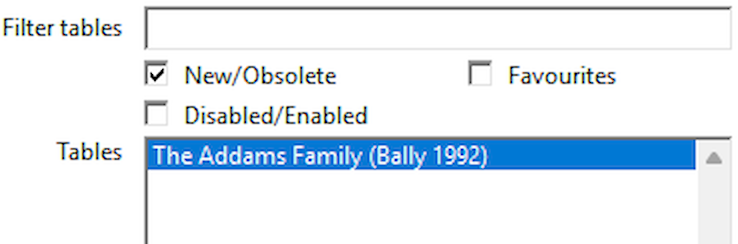 |
Checking the ‘New’ filter , will now shows all the new tables that are added |