In addition to manually creating tables, DatabaseManager also supports a convenient drag-and-drop method.
You can simply drag one or more table files into the ‘Add Table’ area or the ‘Tables’ list box.
This not only streamlines the process, it also ensures that the files are automatically copied to the designated table path defined in your system settings.
It’s a fast and efficient way to populate your database with minimal setup
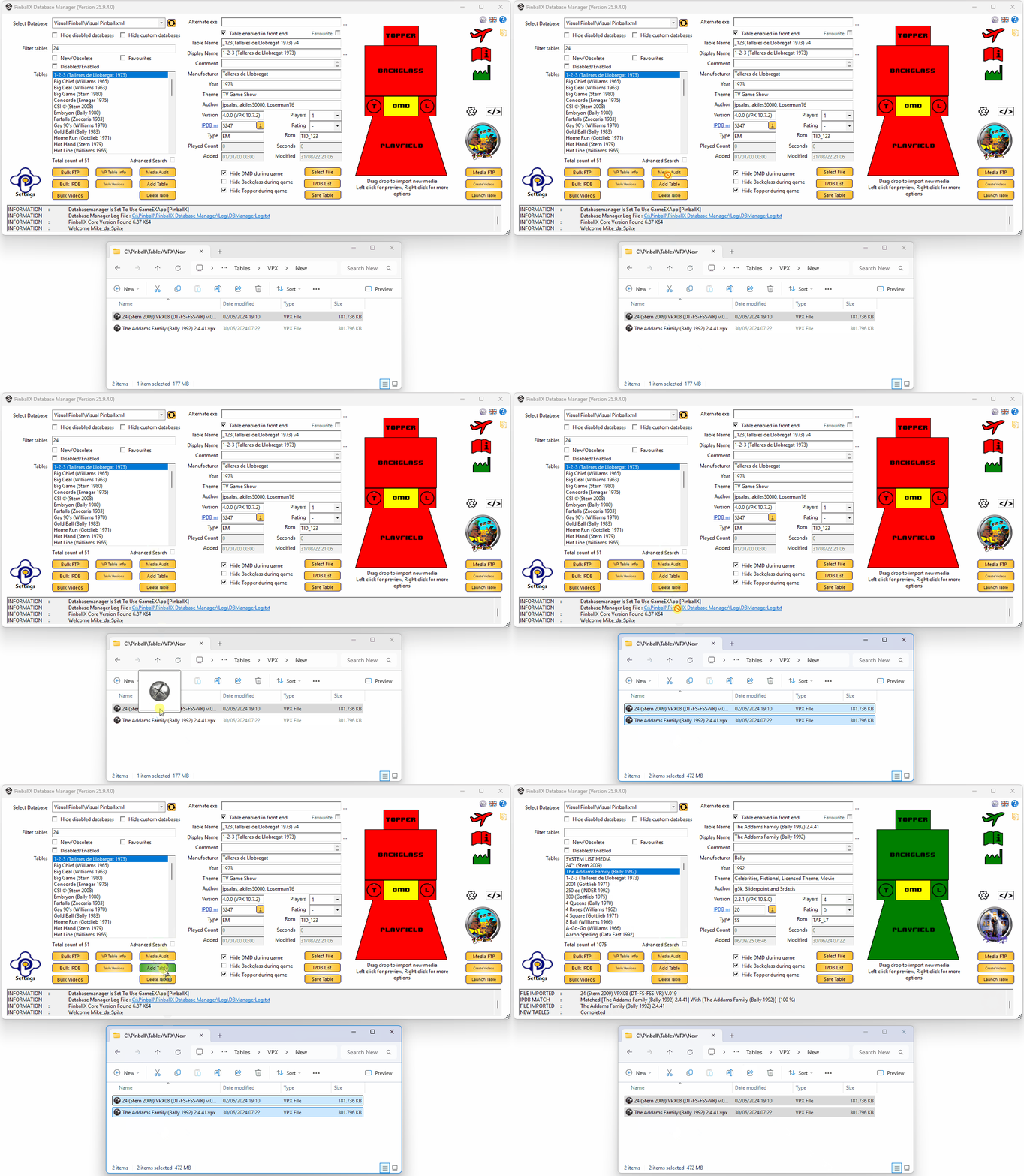 |
Drag 1 or more files from a file location to the ’Add Table’ button or to the ‘Tables’ list box.
|
 |
Based on the table name, an IPDB match will be performed automatically. Based on IPDB match, the Display Name, Manufacturer, Year, Theme, IPDBnr, Type and Players data will be filled in automatically
Visual Pinball and Future Pinball tables, will also get automatically the Author, Version and Rom (this depends if the author filled in all correctly in his table). This is independent if you have a matching IPDB entry.
To manually set an IPDB entry, see IPDB List section |
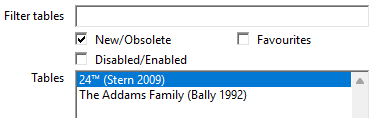 |
Checking the ‘New’ filter , will now shows all the new tables that are added |