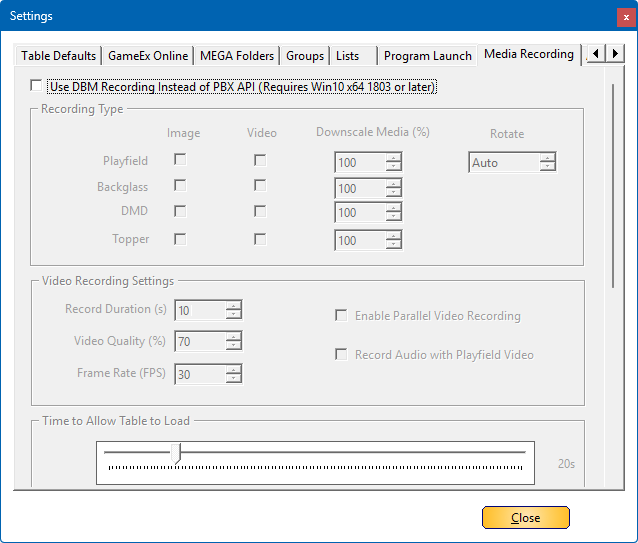
Within the Media Recording tab, you can configure whether Database Manager (DBM) should handle media recording with its built-in options or delegate the task to PinballX.
Requirements & Compatibility
- This feature is available only if you are using Windows 10 build 1803 or later on a 64-bit operating system.
Important Notes:
- These settings apply to all systems where media recording is enabled. Be sure to adjust them accordingly when recording for a different system.
- To record playfield videos, FFMPEG.exe must be located in the PinballX directory. If it is missing, playfield video recording will not be possible.
 |
¶ Use DBM Recording Instead of PBX APIIf checked, it will record media via the built in DBM recorder. |
¶ Recording Type: |
|
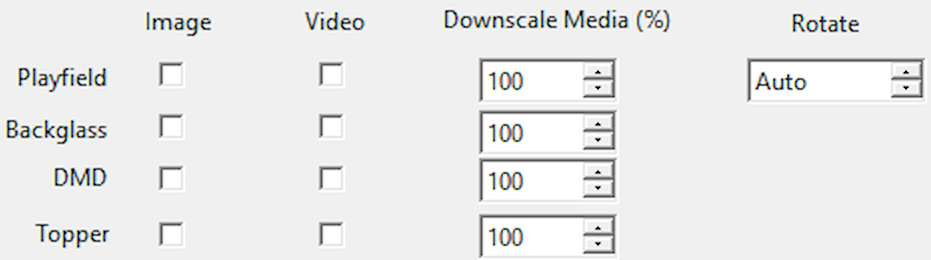 |
In the recording type section, you can specify what type of media you want to record and if you want to scale down your media to show in the front end. You can check Image and Video together and this will create an Image and a Video . The downscale will be applied on Image and Video media. Downscaling is a total of pixels downscaled in percentages For example : if you use a 4k Screen (16:9) with a resolution of 3840 x 2160 pixels, that will have a total of 8,294,400 pixels. Scaling this down in percentages will scale down the total amount of pixels. ** Below is an example for scaling down. But you can use a value between 1-100% To control the rotation of playfield media for use in PinballX use the Rotate function. For most users the Auto setting will work but you can also choose Always or Never to override the automatic setting. |
¶ Video Recorder Settings: |
|
 |
¶ Recording DurationTime in seconds how long the record should take. |
 |
¶ Video QualityVideo quality can reduce the size of the video file. |
 |
¶ Frame RateFrame rate of the output video |
 |
¶ Enable Parallel Video RecordingWhen Checked it will record all your screens at the same time and will create separate videos from it. |
 |
¶ Record Audio with PlayfieldWhen Checked it will record the audio and will add it to the playfield video |
¶ Time to Allow Table to Load |
|
 |
¶ Time to Allow Table to LoadSlide bar that can be adjusted to wait until recording should start. |
¶ PinballX Settings |
|
 |
¶ Use PinballX Startup ScriptWith this option you can set if you want to use the PinballX startup script to be executed. |
 |
¶ Use Table Launch ScriptWith this option you can set if you want to use the PinballX Table Launch script to be executed. |
¶ PinballX Screen settings |
|
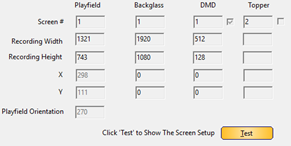 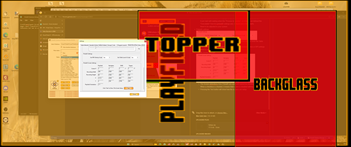 |
These are the screen definitions that are used PinballX. This cannot be modified. When a checkbox is checked, it means that screen is 'enabled' within PinballX Pressing the Test button will show how the screens are setup Orange is showing the recording location. red shows you have overlap pressing Test again will remove the screens. Any adjustment must be done within PinballX settings.exe |
** Scale down list for 4k with a resolution of 3840 x 2160 pixels :
|
Percentage |
Total Pixels |
Resolution (16:9) |
Common Name |
| 100% | 8,294,400 | 3840 x 2160 | 4K UHD |
| 75% | 6,220,800 | 3327 x 1870 | N/A |
| 50% | 4,147,200 | 2715 x 1527 | N/A |
| 25% | 2,073,600 | 1920 x 1080 | Full HD (1080p) |
| 11.11% | 921,600 | 1280 x 720 | HD (720p) |