This example demonstrates how to add a MEGA Folder entry for Wheel media and use it in the main form.
Note: Added MEGA Folder entries will be accessible across all systems.
Below is a detailed breakdown how to use the Mega folders:
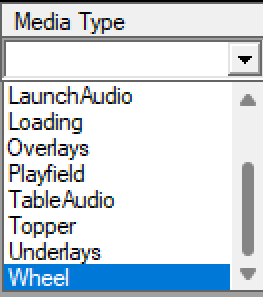 |
¶ Select Media TypeClick the dropdown menu under Media Type and choose Wheel. |
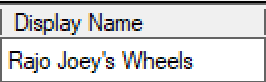 |
¶ Assign a NameEnter a name for the MEGA Folder entry. In this example, we use Rajo Joey's Wheels. |
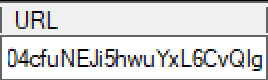 |
¶ Paste the MEGA URLCopy and paste the URL of the Rajo Joe MEGA folder into the designated field: |
 |
¶ Test the LinkClick Open in the Test column. |
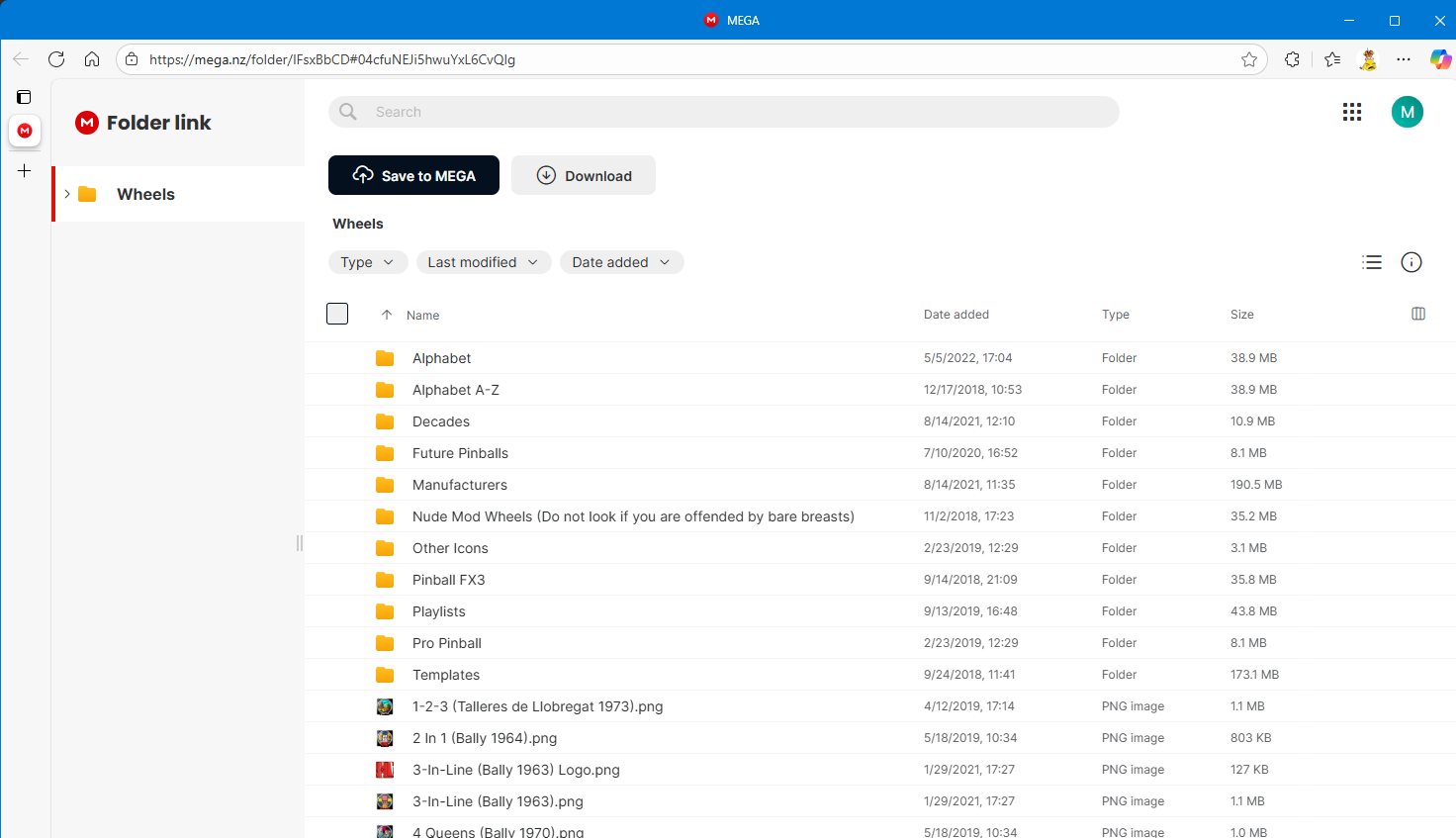 |
¶ Verify the URLIf the URL is correct, it will open in your browser and display the contents of the MEGA folder. |
 |
¶ Confirm the MEGA Folder EntryEnsure the full entry is correctly listed in the Mega Folders section without any errors |
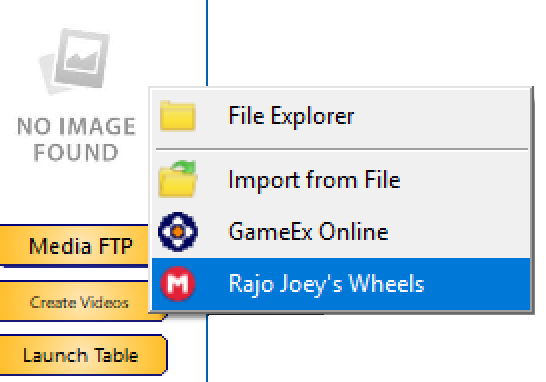
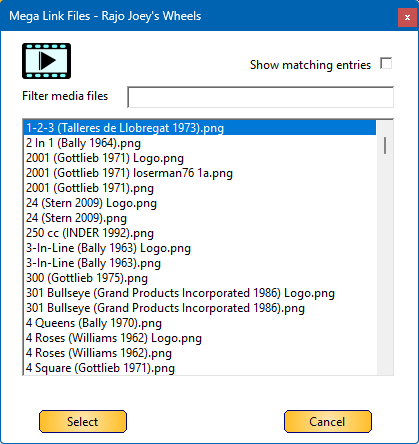
| Using the MEGA Folder Entry in Database Manager | |
 |
|
 |
|
For every media type, Wheel, Playfield, Backglass, and more, you can create Mega Folder Link entries.
These links allow you to organize and access media files stored on MEGA directly from Database Manager.
Additionally, you can add multiple Mega Links per media type, providing access to various sources and collections within the community.
Want more MEGA links to expand your media library?
Search the community to discover and add additional links shared by users.
.