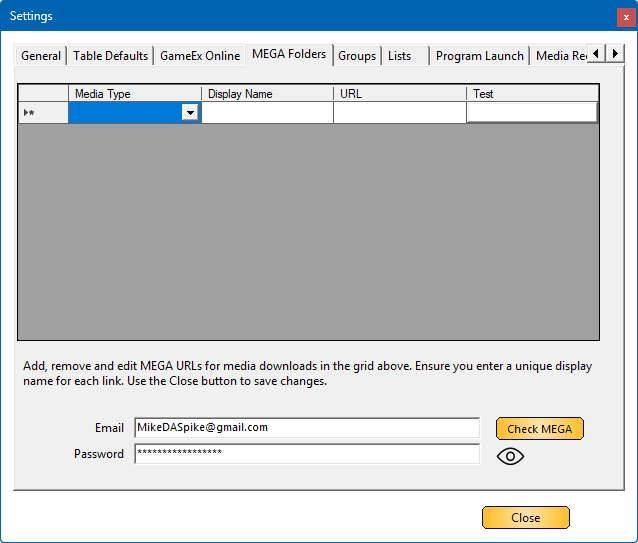
The MEGA Folders tab allows you to access and manage media files using MEGA Links. This feature lets you add your favorite MEGA URLs that store media content for easy retrieval.
Important: MEGA subfolders will not be automatically searched, so ensure you enter the direct link to the folder containing the media you wish to use.
The exception to this is for flyers, where you should enter the top-level Flyers folder. Media from subfolders such as Front, Back, Inside, etc., will then be used automatically.
Additionally, Rajo Joey has a dedicated MEGA upload site containing a vast collection of wheels that can be added as well.
Rajo’s MEGA root folder link: https://mega.nz/folder/IFsxBbCD#04cfuNEJi5hwuYxL6CvQIg
Below is a detailed breakdown of the settings for this section:
 |
¶ Media TypeSelect your Media type where you want to link the URL too |
 |
¶ Display NameSelect a name how it would show in your right click Menu |
 |
¶ URLURL to Mega Upload site that contains the media files |
 |
¶ TestClick on the open button to test the URL you provided in your default browser |
 |
¶ Use Anonymous LogonThis option enables anonymous access to the MEGA API without requiring a userID or password. |
 |
The Email field requires the email address used for logging into MEGA, as MEGA no longer support anonymous login through the API. |
 |
¶ PasswordThe Password field stores the login password, |
 |
¶ Check MegaThe Check Mega button verifies the entered email and password against the MEGA server 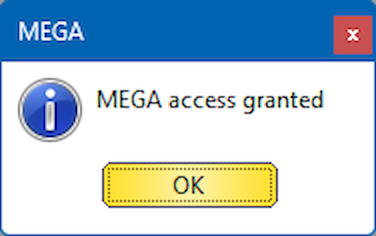
|
 |
¶ All-Seeing EyeEye icon that reveals the password when hovered over. |