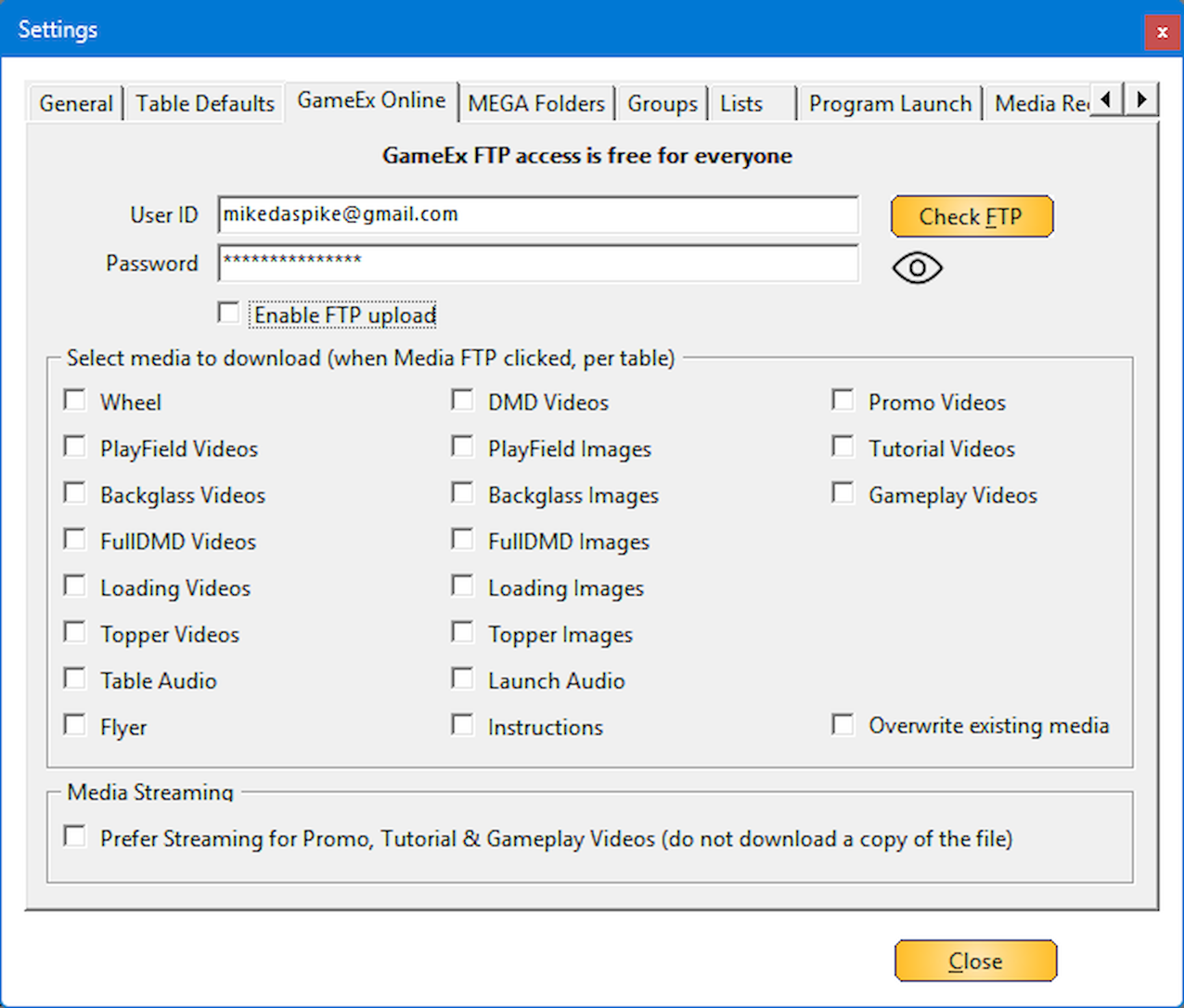
The GameEx Online settings page allows users to manage their login credentials, FTP access, and media downloads seamlessly.GameEx download and upload features are available to all users.
For more details, visit https://www.gameex.info/forums/ftp/
Below is a detailed breakdown of the settings for this section:
 |
¶ User IDThe User ID field requires the email address used for logging into GameEx Forum or GameEx Online, as the GameEx username is no longer supported due to security policies. |
 |
¶ PasswordThe Password field stores the login password, |
 |
¶ Check FTPThe Check FTP button verifies the entered email and password against the GameEx online server 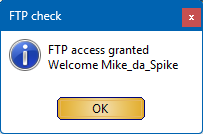 If credentials are incorrect the buttons BULK FTP and Media FTP will be disabled on the main form |
 |
¶ All-Seeing EyeEye icon that reveals the password when hovered over. |
 |
¶ Enable FTP uploadEnabling FTP Upload via the checkbox adds upload options to the right-click menu. Files will be automatically post-fixed with the username and will overwrite existing files. |
 |
¶ Select Media to DownloadThe Select Media to Download section lets users choose specific media types, such as playfield videos, backglass images, instruction files, and more, which are retrieved when clicking the BULK FTP or Media FTP button. |
 |
¶ Overwrite Existing MediaThe Overwrite Existing Media checkbox ensures new downloads replace current files; leaving it unchecked preserves existing media. |
 |
¶ Prefer streaming for Promo, Tutorial & Gameplay VideosWhen enabled, media files will be streamed instead of downloaded locally. This saves disk space, but requires the cabinet to be online at all times. This is a global setting and applies to all import methods, including right-click, bulk FTP, and media FTP. |